Two-factor authentication (2FA)
Practise signing in with an authenticator. Everything here is fictional. Never enter real passwords or codes.
Google Authenticator installation guide
1. Set up your practice account
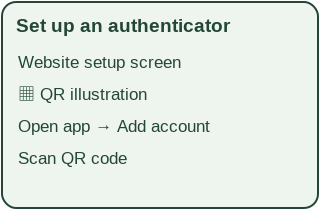
Open the authenticator app, choose Add account, then Scan QR code. Keep the setup code private.
Other verification methods
Email and SMS codes arrive in your inbox or messages. Authenticator apps generate codes on your device, even offline after setup. Enter codes only in the sign-in you started yourself.
Lost or replaced phone?
Use an official recovery option or a saved recovery code. Transfer accounts before wiping your old phone. Never send recovery codes to another person.
What if someone calls asking for your code?
An unexpected caller says they need your sign-in code to help with your account. What should you do?