What you need to know
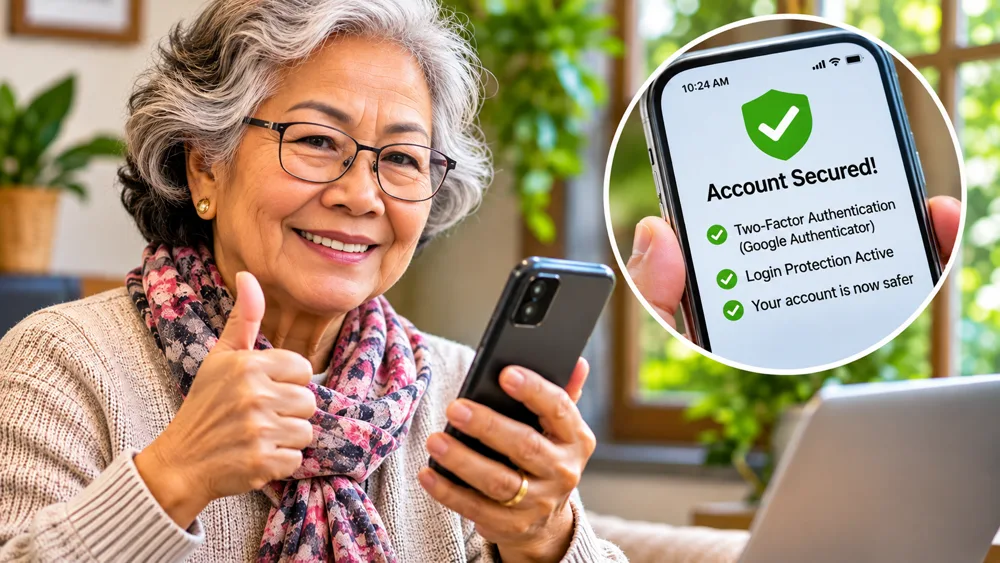
Two-factor authentication adds another proof of identity to your password. Authenticator apps generate short-lived codes; passkeys or security keys can offer stronger phishing resistance.
A realistic example
A caller claims to be support and asks you to read out the six-digit code that just appeared on your phone.
Warning signs
- Unrequested login prompts
- requests for codes
- QR codes sent by strangers
- pressure to approve a sign-in.
What to do, step by step
- On your phone, open the official Apple App Store or Google Play and search for Google Authenticator. Check that the publisher is Google LLC before installing.
- On the account you want to protect, open Security settings and choose two-step verification or authenticator app. Follow that service’s instructions.
- In Authenticator, tap the add button and choose Scan a QR code; scan only the setup code shown by your own account. If using one device, use the setup key option if offered.
- Enter the current code on the original account setup page to confirm. Store recovery codes securely offline and review recovery options before signing out.
- Never share a code or setup QR image. Deny unexpected approval requests.
If you have already responded
If a code was shared, change the password, revoke sessions and review two-factor settings from a trusted device. Use official recovery if locked out.
Trusted resource
https://support.google.com/accounts/answer/1066447 (Internet required.)
Remember: take your time, verify independently and never share passwords or verification codes.